
Dependency Conflicts
As Tasks move across the Plan, dependency conflicts can arise. When a connection's rules are broken, both the connection line and the related Tasks show in red. Review this article to see the different dependency types and their rules. Hoylu won't adjust the schedule automatically: you can drag Tasks to resolve the conflict manually or use Assistive Rescheduling to have Hoylu shift downstream successor Tasks for you.

-
Click on the dependency line
-
Click on the triangle warning icon on the dependency menu
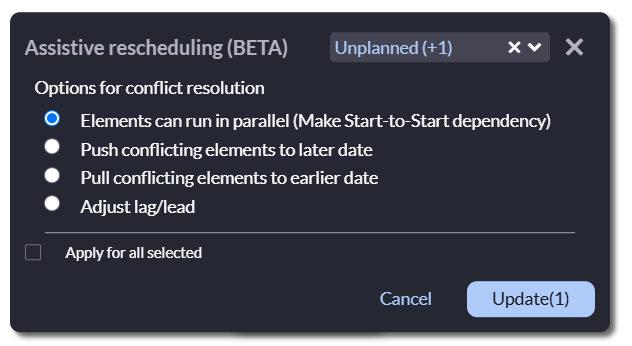
- In the Assistive Rescheduling menu, decide which option you wish to use to resolve the conflict:
- Elements can run in parallel (Make Start-to-Start dependency)
- Push conflicting elements to later date
- Pull conflicting elements to earlier date
- Adjust lag/lead
- Use the top right dropdown to choose the different states that can be included or excluded in this action (especially if using Assistive Rescheduling on large selection of elements)
-
Click the checkbox on the bottom left corner to Apply for all selected
- Click the Update button (which will also show you how many Tasks will be affected in this update)
🚧 Caution: Always make sure to review the successor Tasks once they are re-situated on the Plan.
Unimported Dependency Conflicts
In the event that you have another Workspace with a different view of the same Tasks, and the schedule needs to be adjusted, but a single Task appears to have a conflict with no visible dependency, check to make sure it does not have a dependency conflict in another Workspace.

-
Double-click on the Task to open the Editor
-
Switch from the Details page to the Connections page
-
Review the Tasks's connections to find any that are showing in red with a conflict border
- Choose if you want to import the conflicting dependency to resolve it with Assistive Rescheduling or remove the connection
Comments
0 comments
Article is closed for comments.